TUTORIAL
How to Write and Run a Powershell Script
by Graeme Messina
Project Overview
EXPERIENCE LEVEL: Entry-Level
TIME TO COMPLETE: 30 to 60 minutes
ESTIMATED COST: Free (PowerShell is built into Windows)
Skills Needed
Basic familiarity with using the Windows OS
Typing commands into a command line or code editor
No previous scripting or programming experience needed
Tools and Materials Needed
Windows 10 or Windows 11
Windows PowerShell, which comes pre-loaded on Windows 10 and 11
PowerShell ISE, also pre-loaded with Windows 10 and 11, or VS Code with the PowerShell extension
Admin access to your computer for changing the execution policy
Before You Begin
PowerShell comes pre-loaded with Windows 10 and Windows 11, so you don’t need to download anything to get started. The only thing you need to change is a security setting called the execution policy. It blocks scripts from running by default, so this tutorial will show you how to safely bypass it. You can enable it again once you are done with your session.
Don’t worry if you’ve never opened PowerShell before; it’s not that much different from opening the Windows command prompt, aside from the blue background. You type commands, hit Enter, and that’s it.
There’s something that is worth looking at before you get too far into the tutorial, though; there are two versions of PowerShell. Windows PowerShell (version 5.1) is the version that comes with Windows, and that is the version that you’ll be learning about today. It’s in maintenance mode according to Microsoft, which means they are no longer adding new features to it. There’s a newer cross-platform version called PowerShell 7 (it runs from pwsh.exe instead of powershell.exe), and you can install it separately.
Microsoft recommends PowerShell 7 for new work going forward. The syntax is quite similar, but some cmdlets (PowerShell libraries) won’t be available in v5.1 or will have had their names changed in v7.
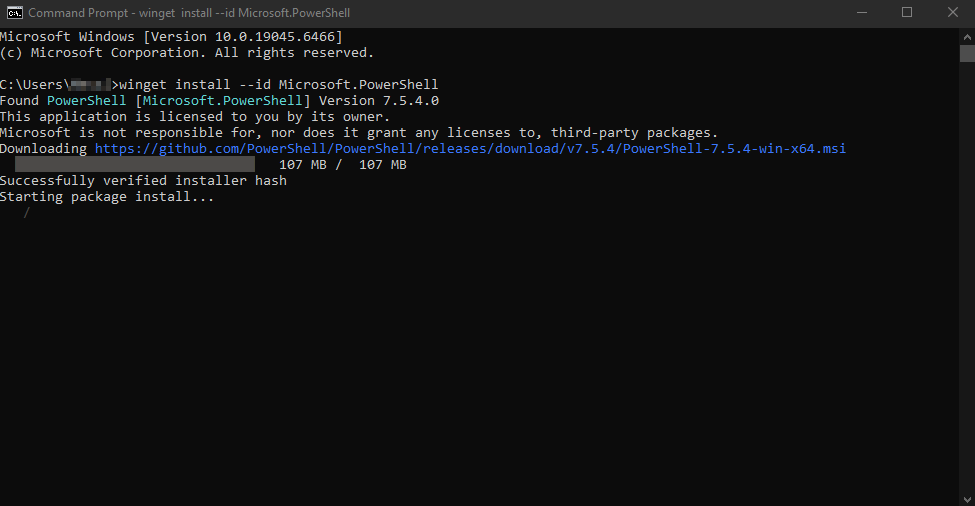
If you want to install PowerShell 7, you can do so right away. Open the Windows command line by opening the run command (Windows Key + R) in Windows and type cmd and hit the Enter key.
Once the command line is open, type:
winget install --id Microsoft.PowerShellOnce it has completed, PowerShell 7 will be installed alongside 5.1. Both versions will be available on your computer. This step is optional, so there’s no pressure if you don’t want to install v7, but now you know how to do it.
How to Write and Run a PowerShell Script
PowerShell scripts are just a series of single commands that you chain together, giving you options. You can build functions within your scripts, which are smaller sections of commands that return results and execute different tasks. PowerShell scripts can be run manually or scheduled with Windows Task Scheduler. You can even turn scripts into Windows services with NSSM (Non-Sucking Service Manager).
PowerShell scripts are just text files that are saved with the .PS1 file extension. You could write your scripts in Notepad and then run them from the PowerShell command line if you wanted to, but the best way is to use the PowerShell ISE or VS Code, where you can execute the code and watch it run in the same application. You’ll write a basic PowerShell script and run it with the details below, and the whole process shouldn’t take more than 30 minutes, even if you’re a beginner.
Step 1: Open the PowerShell Environment
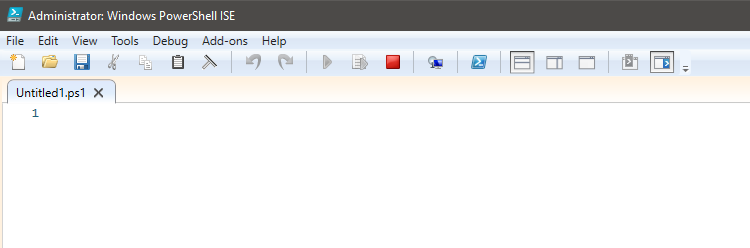
With all of the basics out of the way, you can open PowerShell for the first time. Just press the Windows key on your keyboard, and type in PowerShell. You’ll see the PowerShell icon in the results, right-click on it and select ‘Run as administrator’.
This is important because you will need to bypass the execution policy to run scripts on your system. You’ll know that you’re running either ISE or PowerShell as administrator if you see “Administrator: Windows PowerShell” or “Administrator: Windows PowerShell ISE” in the window title, depending on what you decide to use.
Step 2: Set the Execution Policy
Once the window is open, you can bypass that pesky execution policy. It’s an important security feature because it blocks potentially malicious scripts from running on your system, but if you want to run scripts, then it is not very helpful.
Start by checking your current execution policy. Type this command and press Enter:
Get-ExecutionPolicyIf the output says “Restricted”, then you will need to change it with this command:
Set-ExecutionPolicy RemoteSigned -Scope CurrentUserPowerShell will ask you to confirm the change. Press Y and Enter.
Run the "Get-ExecutionPolicy" again and confirm the change.
The RemoteSigned option is a good middle ground for most people. It isn’t a complete security bypass, so downloaded scripts still need a digital signature from a trusted publisher before they run. Local scripts (like the one you are going to create) will run without needing a signature.
Here’s a breakdown of the execution policy options that are available:
Policy | What It Does |
Restricted | Blocks all scripts from running. Only individual commands can be typed at the prompt. This is the default on Windows desktops. |
AllSigned | Only runs scripts that are signed by a trusted publisher. The most secure option if you need to run scripts. |
RemoteSigned | Local scripts run freely. Scripts marked as downloaded from the internet need a trusted signature. This is the recommended setting for most users. |
Unrestricted | All scripts run with no restrictions. You'll get a warning prompt for downloaded scripts, but that's about it. |
Bypass | Nothing is blocked, and no warnings are shown. Used when PowerShell is embedded inside another application, or for one-off script execution in automation. |
If you are using a company computer that’s managed by your IT department, then be sure to get all the necessary permissions from them first.
Step 3: Create a New Script File
To create your first script file, follow these steps:
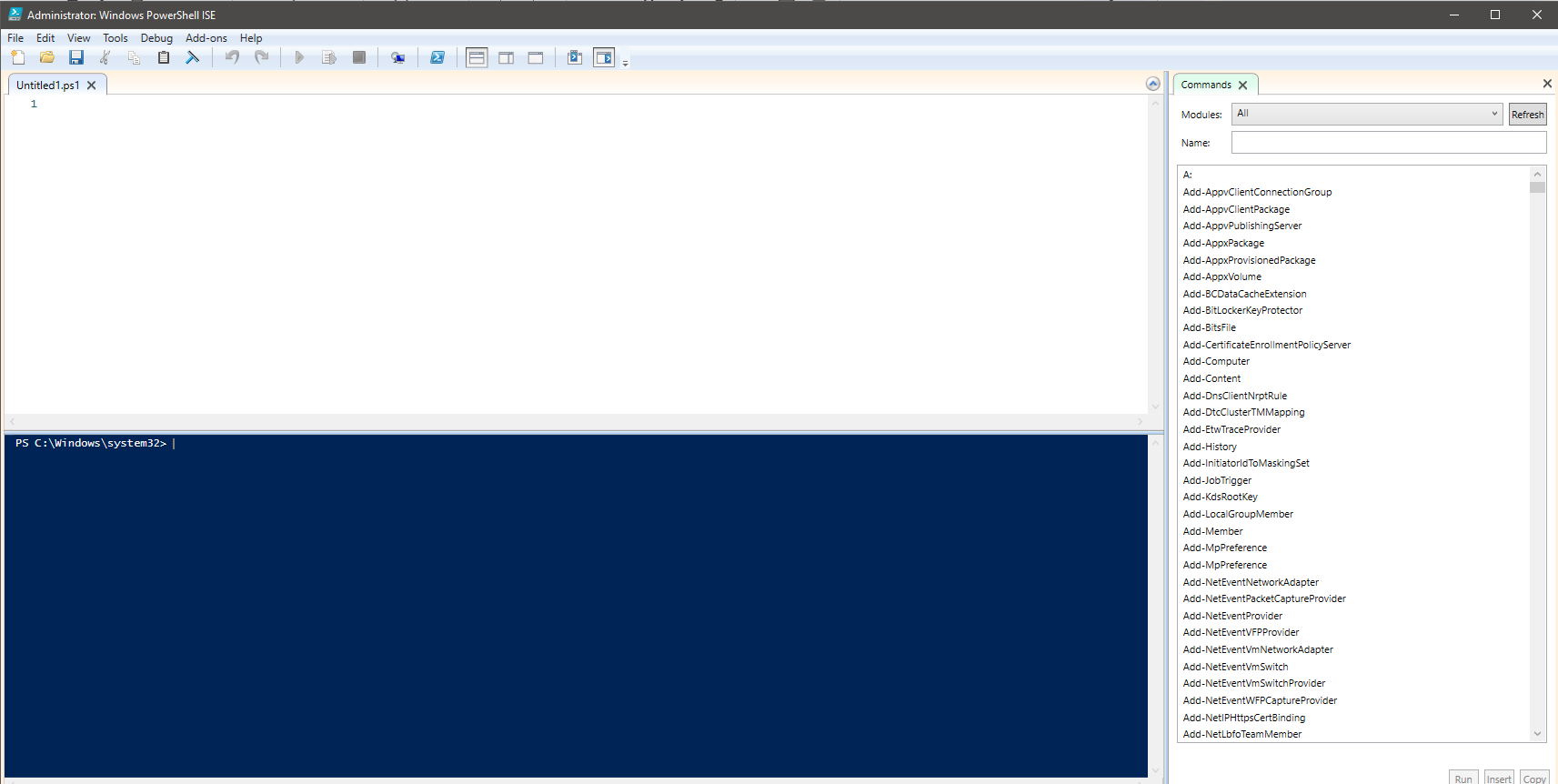
Click File > New (or press Ctrl + N) to create a new blank script
You’ll see a blank area where you can start typing PowerShell commands
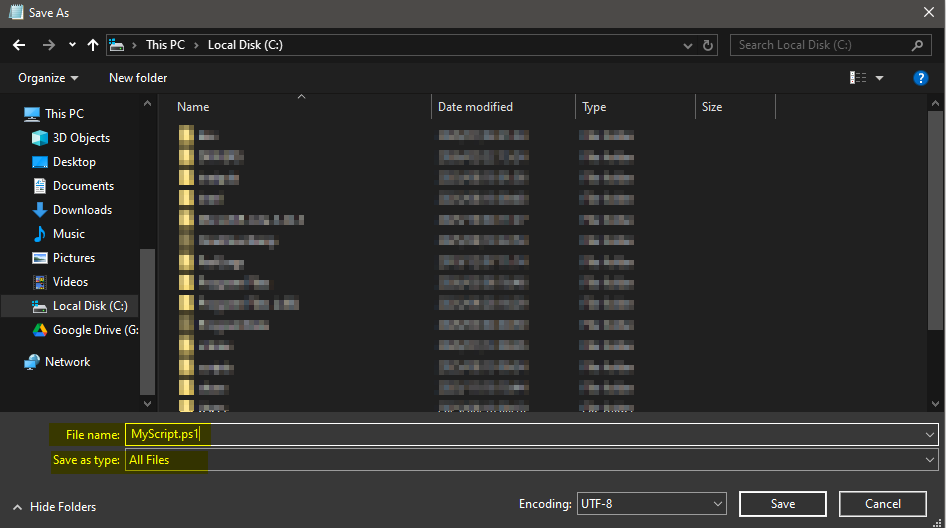
Before you try to run anything, save the script and give it a name like ‘MyScript.ps1’
Create a folder to save your files for easy retrieval and to keep things tidy. Use a folder like c:\scripts or c:\dev that is easy to type when navigating via the command line, but you can save them wherever you feel comfortable.
The .ps1 extension tells Windows that the file needs to be executed with PowerShell.
Step 4: Write Your PowerShell Commands
Here is a very simple script you can either type out or copy and paste into PowerShell ISE. It works in both versions of PowerShell:
# My first PowerShell script
Write-Host "Hello! This is my first PowerShell script."
Write-Host ""
Write-Host "Computer Name:" $env:COMPUTERNAME
Write-Host "Current User:" $env:USERNAME
Write-Host "Today's Date:" (Get-Date -Format "yyyy-MM-dd")
Write-Host ""
Write-Host "Running Services:" (Get-Service -ErrorAction SilentlyContinue | Where-Object {$_.Status -eq 'Running'}).Count
Before you run the script, take a look at what each line does:
Write-Host: Prints text to the screen. It's the PowerShell equivalent of "print" in other languages.
$env:COMPUTERNAME and $env:USERNAME: Pull information from your system's environment variables. These are built-in values that Windows stores about your machine.
Get-Date: Grabs the current date and formats it the way you specify.
Get-Service: With the Where-Object filter, it counts the number of services currently running on your computer.
Lines that start with # are comment lines. They are ignored as code, and they do not run; they are there to describe parts of your script that give other people details about what the script is all about (or for your future self if you forget what the script was for in the first place).
Saving scripts will save you a lot of typing if you ever need to perform the same operations again at a later time.
Step 5: Save the Script File
Press CTRL+S to save your script so that all your hard work won’t be lost if you close the window by mistake. If you are using Notepad or Notepad++, make sure that you specify the file type as ‘All’ and then type .ps1 after the filename. You’ll want to save the script in a location that is easy to navigate to from the command line.
Step 6: Run the Script in PowerShell
It’s time to run the script. If you are using ISE or VS Code, all you need to do is press F5 to execute. You’ll see the output in the bottom window.

If you want to run the script directly from the PowerShell command line, you’ll need to navigate to the folder where you saved the script. In this example, the script was saved to c:\scripts\ps . To navigate there, type:
cd /scripts/psOr
cd C:\Scripts\psThen type:
.\MyScript.ps1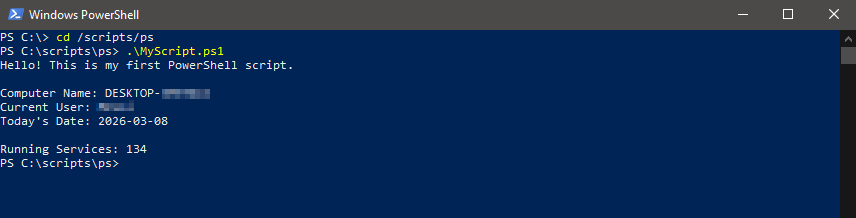
The dot and backslash (.\) at the beginning of the command tells PowerShell to look in the current directory. It’s a security feature that prevents PowerShell from running scripts unless you explicitly allow it. Another option to run the script with the full path from Windows CMD:
powershell C:\Scripts\ps\MyScript.ps1
Or you can run it like this:
C:\Scripts\ps\MyScript.ps1
Here is how to run the script from the command line with PowerShell v7:
pwsh.exe -File "C:\Scripts\ps\MyScript.ps1pwsh.exe -File "C:\Scripts\ps\MyScript.ps1
Another useful trick is that if you just want to run a script one time without permanently changing your execution policy, you can bypass it for a single session:
powershell.exe -ExecutionPolicy Bypass -File "C:\Scripts\ps\MyScript.ps1"Running the script this way is quick for testing without permanently changing any system settings.
Step 7: Test and Troubleshoot the Script
If your script ran without errors, congratulations! But if something went wrong, don't panic. Errors are normal, and PowerShell actually gives you pretty helpful error messages once you know how to read them.
Here are some “gotchas” that you might run into:
"Running scripts is disabled on this system": This means the execution policy is still set to Restricted. Go back to Step 2 and make sure you set it to RemoteSigned. Double-check by running Get-ExecutionPolicy again and reading the output.
"The term 'something' is not recognized": You probably have a typo in a cmdlet name. PowerShell cmdlets follow a Verb-Noun pattern (like Get-Service or Write-Host). Check your spelling and try again.
"Cannot be loaded because the file is not digitally signed": This happens when you're using the AllSigned policy and your script isn't signed. Switch to RemoteSigned if you're running locally created scripts.
Red text in the console: Red text is never a pleasant sight when you are scripting, and in PowerShell, it means there was an error. PowerShell is great because it usually tells you the exact line and line number causing the error. You’ll quickly spot missing quotation marks or typos if you read the errors carefully.
PowerShell ISE lets you run sections of your script without executing the entire script. Just highlight the section of your code you want to run, then press F8 to run it. This is very helpful for troubleshooting sections of your script in isolation.
If you are testing with PowerShell 7 from the Windows command line and your executable hasn’t been added to your system path, then you can specify the pwsh.exe file before running the script:
"C:\Program Files\PowerShell\7\pwsh.exe" C:\Scripts\ps\MyScript.ps1
Step 8: Automate Script Execution (Optional)
Once your script works, you can automate it by running it on a schedule without any user input. Windows Task Scheduler is great for handling it.
To set it up, follow these steps:
Open Task Scheduler by searching for it in the Start menu.
Click "Create Basic Task" in the right-hand panel.
Give your task a name and description (something like "Daily System Report.")
Choose your trigger (daily, weekly, at startup, etc.)
For the action, select "Start a program."
In the "Program/script" field, enter: "powershell.exe".
In the "Add arguments" field, enter: "-NoProfile -NonInteractive -ExecutionPolicy Bypass -File "C:\Scripts\ps\MyScript.ps1".
Review and finish.
The arguments or flags (also called parameters) from this schedule do a few things. The -NoProfile flag prevents the script from running with your user profile. It’s useful because it stops any profile-related scripts from interfering with your task.
The -NonInteractive flag tells PowerShell not to ask for any user input, so the script won’t sit and wait for you to press a key to continue. The -ExecutionPolicy Bypass flag skips the execution policy check for that specific task.
Using all of these flags together gives you a reliable task that should execute without running into issues.
Step 9: Document and Maintain Your Scripts
Writing scripts can be fun and rewarding, but it’s only half of the job. If you’re building multiple scripts for many different systems, you need to keep them organized and well-documented.
To Comment, or Not to Comment (That is the Question)
Opinions differ on the subject of comments. Some people will tell you that if you can’t understand what a line of code does just by looking at it, then it needs to be refactored and simplified, and not have comments tacked onto it. Others will tell you that comments need to be peppered all over your scripts to explain every detail.
When in doubt, find out your company’s best practices for documentation and comments, and follow them. If you’re running solo, keep things documented at a level you would be comfortable sharing with your team. Things happen, and if you ever move on to another department or company, you don’t want to leave your team with the unenviable task of deciphering your scripts with no clues.
Use Descriptive File Names
Your scripts should be named so you can quickly understand what they do. If you wrote a script that helped fix a critical system issue six months ago but named it script123-final-v4.ps1, you probably won't remember its name.
Keep Your Scripts Together
Create a dedicated folder and keep them all together. Sort them by what they do, or what systems they are used for. This will prevent a sprawling mess of files that is difficult to sift through when you really need to find that special script.
Version Control
As your scripts change over time, you will want to keep a record of what you did. This is important when rolling back to previous versions, especially if you realize that your most recent version contains errors or missing sections. Git is a good option for this, as it can be used either locally on your computer or uploaded to the web. Just make sure you follow your company's version control policies to be on the safe side.
Test, Test, Test
Always test after making changes to your scripts. Small errors in your script can cause headaches if you deploy without testing. One wrong character in your script and it won’t run, so always validate your work as soon as you finish. Better to find out that it’s broken now than in a few weeks when you need to run it.
Conclusion
You just wrote and ran your first PowerShell script! That’s an achievement worth building on. Scripting can teach you some of the fundamental principles of software development, such as loops, if/else, and try-except logic. Some people experience PowerShell as their first language; it’s relatively easy to learn, it runs fast, and it is a practical starting point.
PowerShell’s command library is massive, so there’s a cmdlet for just about any task you’d like to complete. You can connect to databases, manage Active Directory users, pull data from REST APIs, configure network settings, and even send emails straight from a script. The more you practice stringing commands together, the faster you'll build scripts that save you time.
The CBT Nuggets PowerShell training covers everything from variables and loops to error handling and remote management. It's a great next step if you want to turn scripting into a core part of your skill set.
Ready for more? Get more done in less time with this quick-access PowerShell commands cheat sheet—troubleshooting ports, managing services, automating daily tasks—the most useful commands right at your fingertips.
Read More / Related Content
Why PowerShell is a Great First Language