How to Use Microsoft Copilot: A Guide

Quick Definition: Microsoft 365 Copilot is an AI assistant built into Microsoft 365. It helps you write documents, interact with data, and even helps create presentations. It allows you to manage your daily tasks using natural language, as if you were speaking to a human assistant.
If you use Office apps for your everyday work tasks, then Microsoft 365 Copilot is going to change the way you work. Tasks like creating Excel formulas or formatting and tweaking presentations can be done with the help of your very own AI assistant.
Many people start hearing alarm bells at this point, thinking this is a replacement for people. The truth is that, as good as AI is in its current state, it isn’t all that smart at understanding the real-world work requirements that businesses need. Think of Copilot as a skills multiplier that makes your existing knowledge even more valuable, not as a competitor for your job. (And it can’t fetch coffee for the team.)
To get the most out of Copilot, treat it as a very smart assistant that sometimes takes things a little too literally but is eager to help. It can be a little overconfident at times, so your ability to steer it back to reality is the skill that differentiates your work from people who copy and paste everything that they get from an AI system. If used correctly, it can save you hours of complex work.
What is Microsoft Copilot?
Microsoft Copilot is an AI assistant that has access to the same files and information that you do with Microsoft 365 applications. It’s not your run-of-the-mill chatbot; it has context around your actual work. It can handle everyday tasks that require a lot of time, such as drafting emails and working with Excel data.
Enterprise Copilot uses Microsoft Graph to handle your emails, Teams chats, and SharePoint/OneDrive data that you have access to. The context that Copilot has around your organization and individual files is what makes it so useful. If you have permission to access data, then you can use it in Copilot. This makes it secure from an enterprise perspective, as it respects the security and confidentiality settings configured for each user or department.
Its deep integration with Microsoft 365 means you don’t need to learn a new application or system—it’s built right into your existing apps.
How Copilot Works Across Microsoft 365
Copilot is an essential AI tool that adapts to each application while maintaining a consistent user experience. Here's how it works with the different Microsoft platforms:
Word
Copilot can help you draft your documentation, especially when you’re stuck or need a fresh perspective on a draft you have been struggling with. It can rewrite sections of your documents, make suggestions about your word choice, or draft an entire document for you.

Opening a blank document in Word opens the Copilot dialog, letting you start drafting instantly with AI assistance.
You can get specific with your prompts, too. Try out something like “Write me a project status report and use only Q4 sales data from our latest sales report,” or something similar that you have data for. Copilot will use the data it has access to and draft a document. You can edit and tweak it until you have the perfect document.
Excel
This is one of the most useful integrations, and users are excited about it. Excel formulas can be tricky to get right, and Copilot makes it easy to get results fast with plain-English prompts. The only prerequisite is that your Excel data must be formatted as an Excel table in your spreadsheet for Copilot to access it.
In this example, we can generate random data, have Copilot create a table and associated graphs to visualize it.
We start with a prompt:

Copilot gets to work:

We can download the file and look at what it has generated for us:
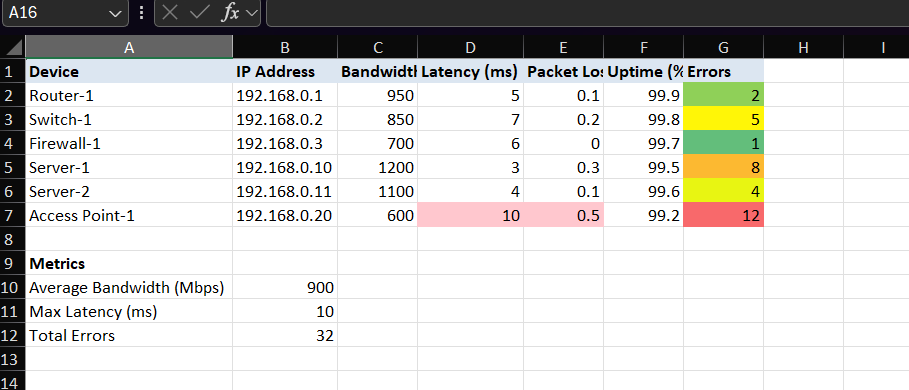
And the dashboard uses this data to generate some graphs:
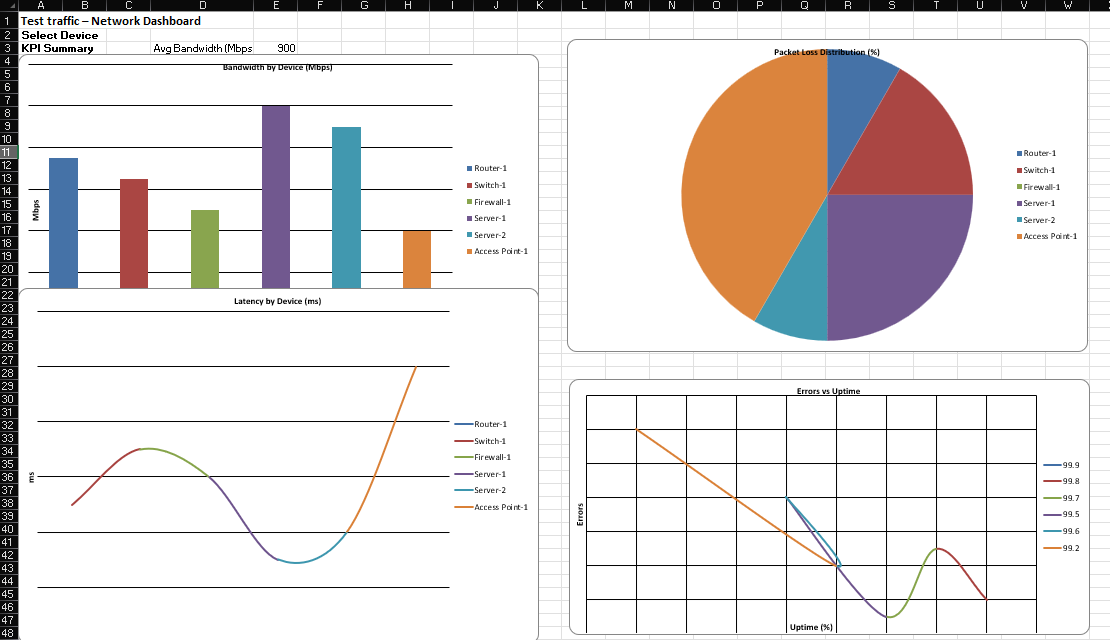
It’s a simple example, but with your own data, you can quickly drill into the details and create useful visuals to help you bring your information to life.
PowerPoint
Starting from scratch when creating a PowerPoint presentation is not fun. Sure, there are templates that you can search through, but you don’t always find exactly what you want. Copilot makes this much easier because you can simply ask it to create whatever you need.
Start with a prompt that describes what you have in mind, such as “Create a presentation about our new sales strategy.” This will initiate the creation of a new slide deck featuring a visually appealing layout, well-defined content sections, and key talking points. You can iterate from there and add your personal touches until you have a presentation you’re excited to share.
Here is a fun example of what you can do with Copilot in PowerPoint:
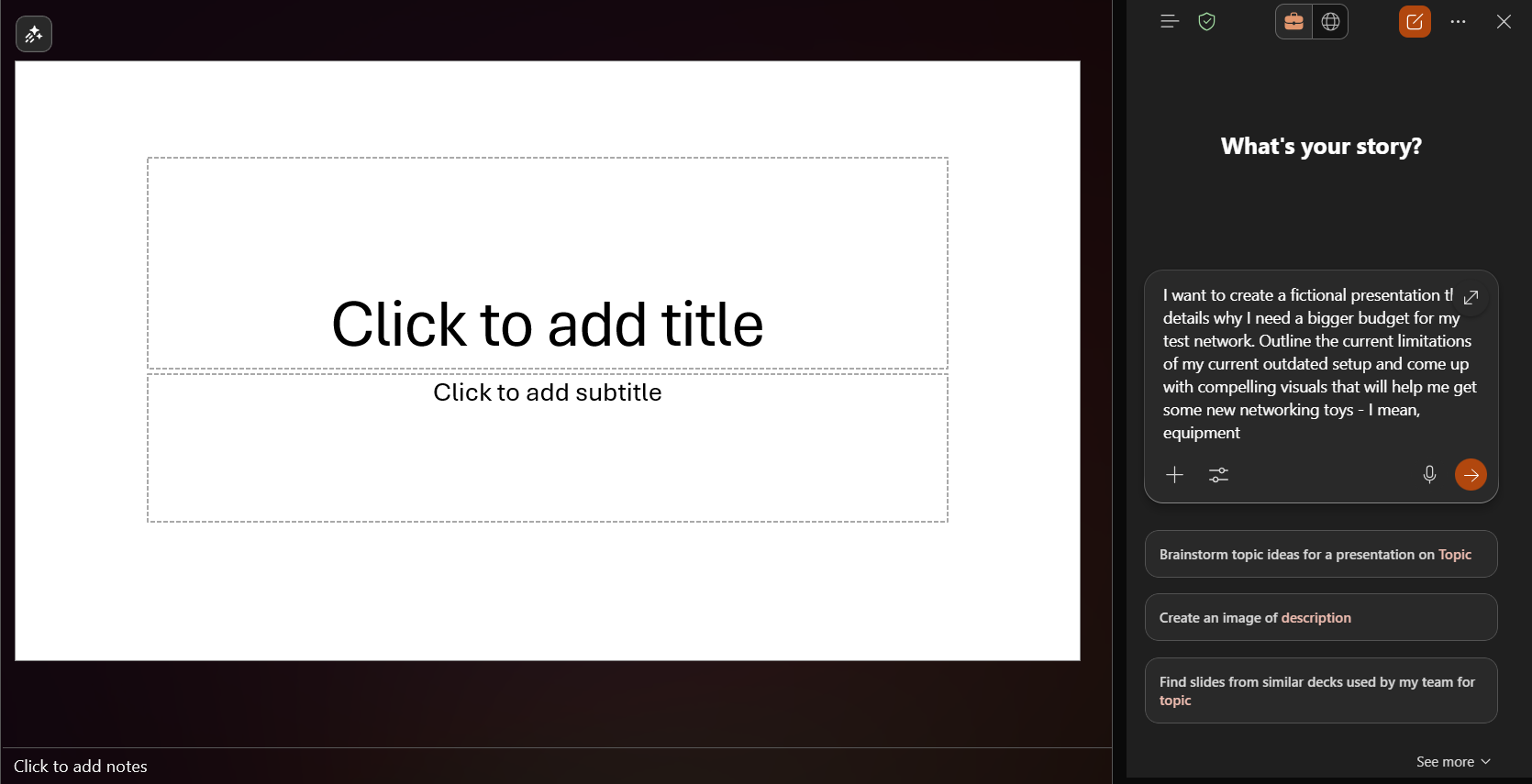
Start with a blank presentation and create your prompt:

After you have finalized your details, ask Copilot to generate a downloadable presentation for you, and it will ask for confirmation: The result after just a few minutes:

Teams
Copilot acts as a meeting assistant to help you manage chat conversations. If you missed part of a meeting, use Copilot to catch you up so you don’t have to wonder about what you missed. Use it to draft meeting agendas and any other materials you’ll need for your next meeting.
Copilot offers a real-time transcript service that lets you take notes and create action items on the fly. After your meeting is done and the dust has settled, you can ask Copilot to generate summaries and follow-up emails so that you don’t forget anything that was brought up.
The only limitation is that if you want to use Copilot to review a meeting you just had, you will need to have transcriptions and recording enabled. Click here for a full table of features for Microsoft 365 products.
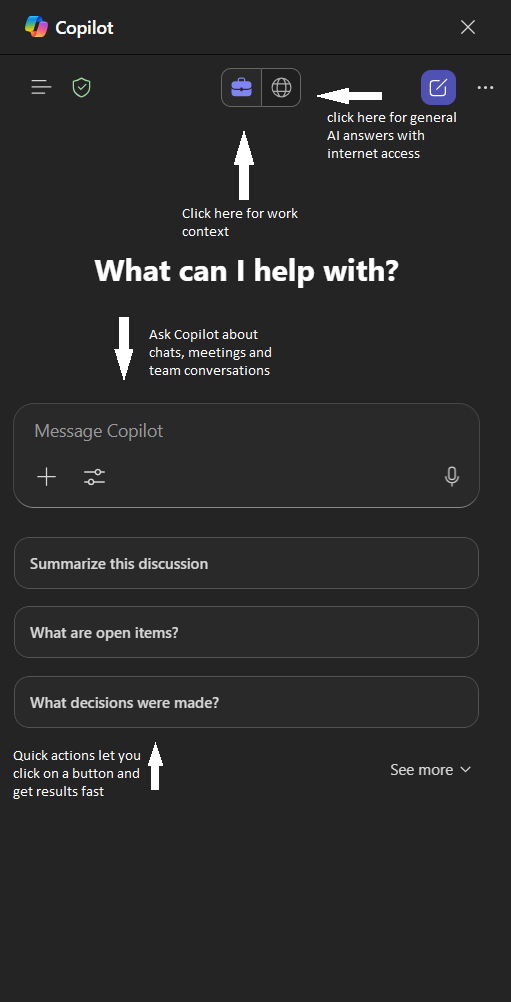
Step-by-Step Guide to Using Copilot
Getting started with Copilot is very straightforward.
Step 1: Verify Your License: Basic features are available in Microsoft 365 Personal and Family plans, but full enterprise features are only available with a verified Copilot license that costs $30 a month per user on top of qualifying plans like E3, E5, or Business Standard/Premium.

You will see this at the bottom of your Copilot window if you have a premium license.
Step 2: File Access Setup: Copilot can’t access your files directly unless they're stored in a Microsoft cloud app such as OneDrive or SharePoint. The Microsoft image explains how data access works.

Source: Microsoft
Step 3: Become a Prompt Master: It’s hard to get what you want if you don’t know how to ask for it. This is where skillful prompting can make a world of difference. Try to be as descriptive as you can - don’t ask for “help with data tasks”. Instead, be specific. You can select files by clicking the + button or by typing /, which opens a dialog where you can select People, Files, Meetings, and other data sources for your prompt.
Step 4: Review, Refine, and Retry: Not everyone gets the perfect results right away with AI systems—and that is totally fine. As you learn how to interact with Copilot over time, you will get better at ‘one-shotting’ (getting the results you want after a single prompt), the results that you are after. Don’t be afraid to start over if you feel like the session has gone off the rails and left you in the weeds.
How to Get the Most Out of Copilot
With any Large Language Model (LLM) based system, success comes down to precision. You need to be precise with what you want. LLMs are great at guessing, but only up to a point—they can’t read your mind, thankfully.
If your prompts are ambiguous or vague, Copilot will infer what you likely meant. This isn’t always a bad thing—sometimes we genuinely don’t know what we want, so being general can lead to solutions that you hadn’t thought of.
But for most work tasks, there is a pretty well-defined objective that you need to achieve, so learning how to convey that to Copilot will elevate your productivity by a lot. Don’t be afraid to be conversational or slightly informal with Copilot, it is trained to use natural language, so it is very good at understanding your requests with enough specificity.
Identify which tasks are draining your time and resources, and work with Copilot to minimize the effort required to complete them. AI can happily handle routine tasks while you do the real work that you enjoy.
How to Avoid Potential Pitfalls with Copilot
AI can seem infallible at times, but it has limitations like any man-made system. Remember to verify anything factual that LLM systems give back to you. Don’t be fooled by their unwavering confidence; always verify how recent, factual, and accurate the data they produce is.
Sometimes AI tools can lead you down a path with a solution that isn’t working. Don’t be afraid to cut your losses if you find yourself with suggestions that aren't moving you closer to your goals. Fire up another session to start fresh and specify what you are trying to accomplish and what you don’t want it to do.
Don’t delegate your own judgment to an AI system. At the end of the day, you are still responsible for the work that you produce. Verify what you can, and ensure you are comfortable with the accuracy of your documents and data before sending them to your boss.
When and Where to Use Microsoft Copilot
Copilot can be a real time saver in the right scenarios. If you have ever been overwhelmed with ‘analysis paralysis’, then you know what it is like having piles of work to do, but no idea where to start. Copilot can help you rank your work and prioritise tasks with looming deadlines, or help you determine which projects will deliver the most value if completed sooner.
If you need quick stats but don’t have time to create formulas and spreadsheets, ask Copilot to generate initial figures from your existing data. This is a real time saver if you need rough percentages and figures from piles of data.
Follow up after meetings with Copilot by using the transcription tools to find any small agenda items or random requests that you missed. This is an excellent way to stay on top of tasks you might otherwise forget.
One advantage of using Copilot in a business setting is its use of Enterprise Data Protection (EDP). This means all your sensitive and confidential business information is secure and safe to use with Copilot, unlike public AI chatbots that could train on your data if you enter it into them. Microsoft has compiled a very helpful list of FAQs that provides detailed information about Copilot.
Conclusion
Work tasks somehow feel a little lighter when you know how to use Microsoft Copilot to its full potential. It doesn’t remove any of your responsibilities—you still need to verify your data and ensure it is accurate—but it accelerates your workflows and helps you deliver results faster.
Start small with basic tasks, and then work your way up to full projects with Copilot. The time saved by offloading monotonous and repetitive work to Copilot will give you the opportunity to apply your mind and experience to more strategic and important tasks. You’ll quickly notice that your workflows get more streamlined and focused as you learn where Copilot fits into your daily tasks.
Check out the Microsoft Copilot Training: Excel, Word & PowerPoint course to get hands-on training that will help you master the AI skills that you need to stay effective.
Want to try a CBT Nuggets course? Get a free 7-day trial.
IT Leaders Stay a Step Ahead
Subscribe to email updates from CBT Nuggets for practical IT training insights, cert roadmaps, team readiness tips and more.