TUTORIAL
Wireshark Display Filters Explained (With Examples)
by Graeme Messina | Published on March 25, 2026
Project Overview
EXPERIENCE LEVEL: Entry-Level to Intermediate
TIME TO COMPLETE: 30-45 minutes
ESTIMATED COST: Free
Skills Needed
Basic understanding of IP addresses and ports
Familiarity with common protocols like HTTP, DNS, and TCP
No prior Wireshark experience required, but it helps
Tools and Materials Needed
A computer running Windows, macOS, or Linux
Wireshark (free download at wireshark.org)
A network interface card (any standard NIC works)
A live network connection or a sample .pcap file to practice with
Optional: sample .pcap files from Wireshark's official sample captures page
Before You Begin
Before you get started, you’ll need to download and install Wireshark from the wireshark.org website. You are going to need admin or root privileges to capture live traffic, but if you would rather practice without capturing live traffic then you can download a sample .pcap file from the Wireshark Wiki and open that instead. Another thing you should know is that Wireshark has two types of filters. This tutorial covers display filters only, and not capture filters.
Getting Started with Wireshark Display Filters
Wireshark works by dumping every packet it sees on your network in a scrolling list of data. Without filters, you’re staring at thousands of lines of streaming code like Neo in the Matrix, minus his superpowers.
To make sense of this noise, you need filters. Filters let you zero in on the network activity you care about, ignoring everything else. Once you learn the syntax, you’ll have one of the most practical Wireshark skills needed for troubleshooting network issues.
Wireshark is an excellent way to get started with packet sniffing and general network troubleshooting at the packet level.
Step 1: Understand What Display Filters Are and When to Use Them
Wireshark has two filter types: capture filters decide which packets get recorded in the first place, so unless you specify what you want, you won’t be recording it. Display filters work on the data that’s already been captured. Display filters are not destructive, so retrieving the excluded data again is simply a matter of removing the Display filter.
This lets you experiment with your captured data without worrying about deleting information, so you can investigate the same capture file multiple times from different angles.
You'll generally reach for display filters when:
You need to investigate a specific device on the network.
You want to isolate traffic for a particular network protocol or application.
You're hunting for unusual or suspicious activity.
You need to confirm whether a service is listening on the right port.
Step 2: Locate and Use the Display Filter Bar
The display filter bar is the long input field at the top of the Wireshark window, just below the toolbar. It says “Apply a display filter…” and this is where every filter expression gets typed in.
There’s a visual effect built into the bar. If you type a valid filter into it, then it will turn green. Type something with a syntax error, and you will see that it turns red. A yellow bar means the filter is valid, but it might not match any packets in your current capture. These colors are useful as a quick reference for feedback before you hit Enter.
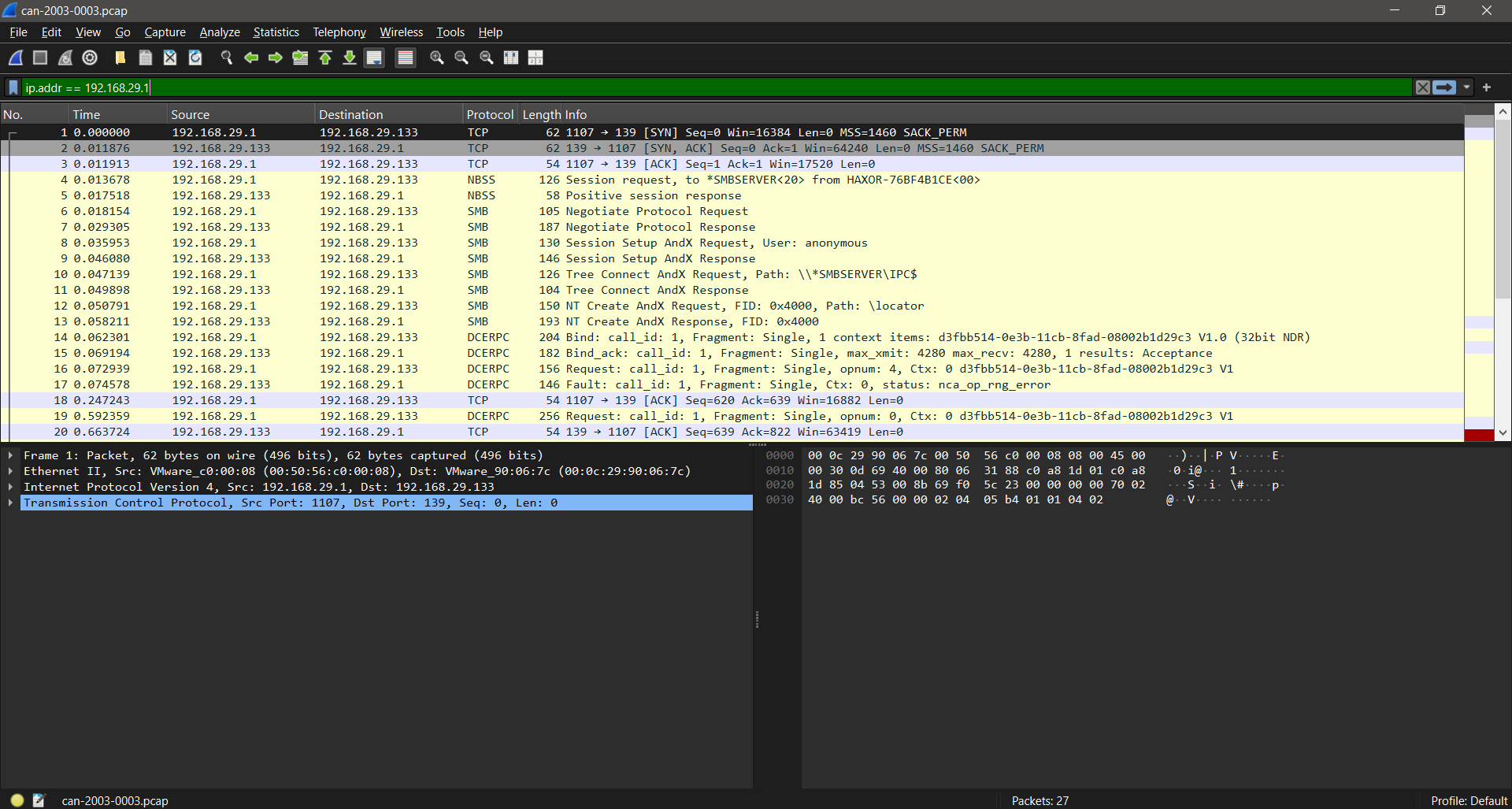
To apply a filter, type your expression into the bar and press Enter. To clear it, click on the X button on the right side of the bar, or just delete your text from the search bar and press Enter when it is empty.
Step 3: Learn Basic Display Filter Syntax
Every display filter follows the same structure: a field name, an operator, and a value. We can put those together with something like ip.addr == 192.168.29.1. That’s all there is to it at this level of search, which makes it really easy to get started with.
Here are some of the operators that you’ll use most often:
== Equals
!= Does not equal
> Greater than
< Less than
>= Greater than or equal to
contains: Checks whether a field contains a specific string
matches: Uses a regular expression
You don’t need to memorize field names. All you need to do is click on any field in the Packet Details panel, and Wireshark will show you the exact field name at the bottom of the window. Copy it straight into the filter bar, and you have a very easy way to search through your capture files.
Step 4: Filter Traffic by Protocol
Protocol filters are simple to apply and an easy way to drill down into specific patterns you are investigating. Just type in the protocol name (all in lowercase) and press enter, and your results will display in the results section. In the example screenshot, DNS is the target, and the result is the filtered output.
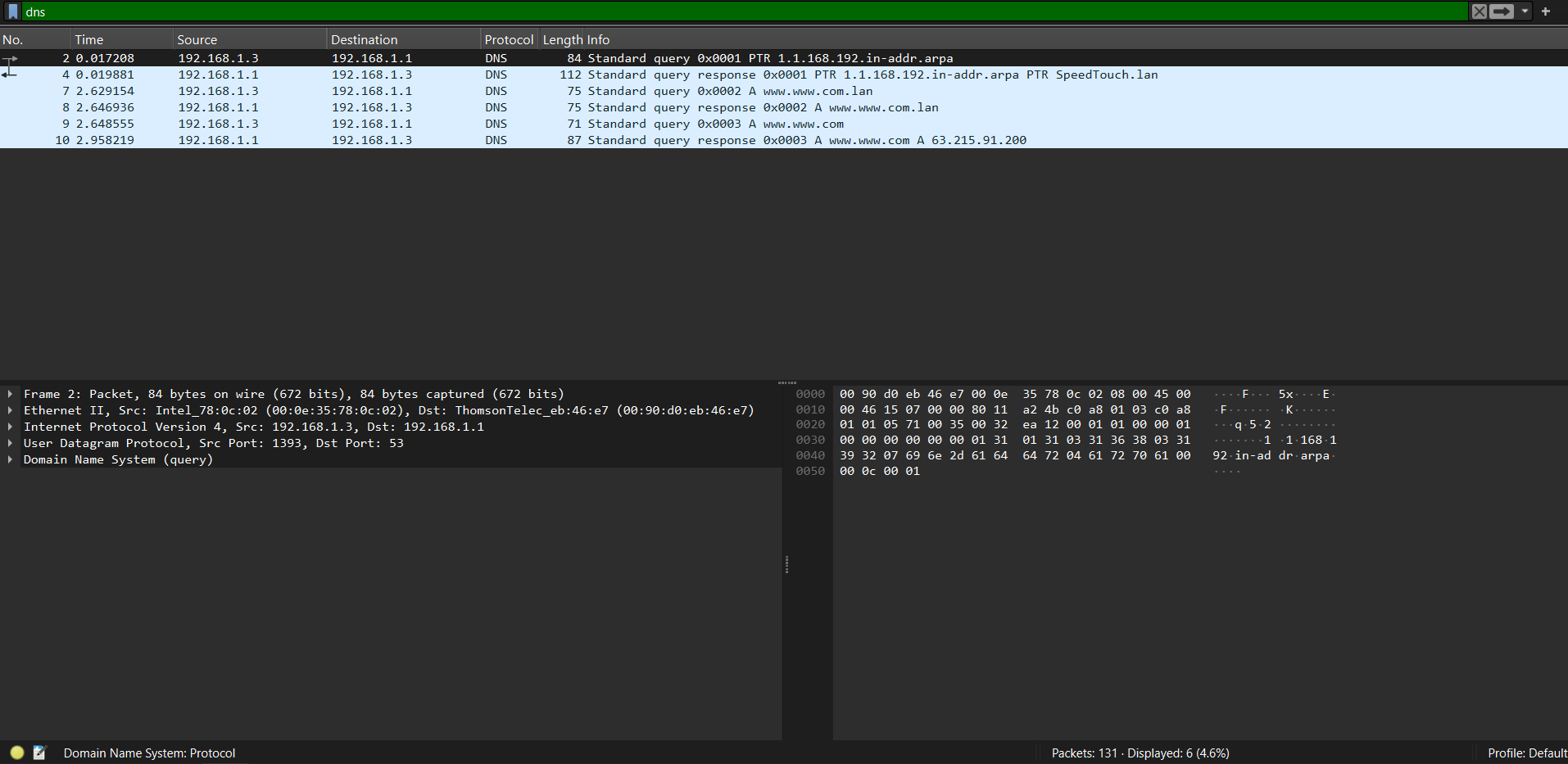
Some protocol examples you can use to search are:
http
dns
tcp
udp
icmp
arp
tls
If you want to catch all web traffic, you can use a combination of protocols in the search bar, joined with a double pipe symbol (||), with the query looking like this: http || tls. That command would apply to both normal and encrypted connections within the same filter.
Step 5: Filter Traffic by IP Address
IP address filters are probably the ones you'll type most often. If you're investigating a specific device, this is always a smart first move.
To show all traffic to or from a specific IP address:
ip.addr == 192.168.1.100To show only traffic coming from a source IP:
ip.src == 192.168.1.100To show only traffic going to a destination IP:
ip.dst == 192.168.1.100You can filter an entire subnet with CIDR notation:
ip.addr == 192.168.1.0/24This shows all traffic to or from any device in the 192.168.1.x range, which is useful for scoping your investigation to a single network segment instead of the whole capture.
Step 6: Filter Traffic by Port Number
Port filters help you isolate traffic for a specific service or app on your network. The syntax works the same way for both TCP and UDP.
To filter all TCP traffic on port 80:
tcp.port == 80To filter only traffic originating from a specific source port:
tcp.srcport == 443To filter only traffic destined for a specific port:
tcp.dstport == 53Swap tcp for udp and the same structure works for UDP traffic:
udp.port == 53Port 53 is DNS, so that last filter shows all DNS queries and responses in your capture, which pairs well with the earlier protocol filter from Step Four.
Step 7: Combine Filters Using Logical Operators
This is where display filters really start to get powerful. Wireshark supports three logical operators so that you can start combining conditions:
&& or and: Both conditions must be true
|| or or: Either condition can be true
! or not: The condition must be false
Some practical examples for you to try:
Filter HTTP traffic from one specific IP:
http && ip.addr == 192.168.1.100Filter traffic on port 80 or port 443:
tcp.port == 80 || tcp.port == 443Show everything except DNS:
!dnsExclude a specific IP from your results:
!ip.addr == 192.168.1.1When you combine and and or conditions together, use parentheses to make the logic clearer.
Without them, Wireshark could run your conditions in an order you didn't expect:
(ip.src == 10.0.0.1 || ip.src == 10.0.0.2) && tcp.port == 80Building up combined filters like this is where your troubleshooting can make a big impact on an investigation. It speeds up your search times and lets you combine results together, letting you piece the events together all in one area.
Step 8: Filter Traffic by TCP Flags or Connection State
TCP flags tell you a lot about what's happening inside a network connection. Every TCP segment carries flags that indicate its role in the conversation. The main ones you'll want to keep an eye out for are
SYN - initiates a connection
ACK - acknowledges received data
FIN - closes a connection gracefully
RST - resets a connection suddenly (often a sign of trouble)
PSH - tells the receiver to pass the data to the application right away
To filter for SYN packets only, which will show you new connection attempts:
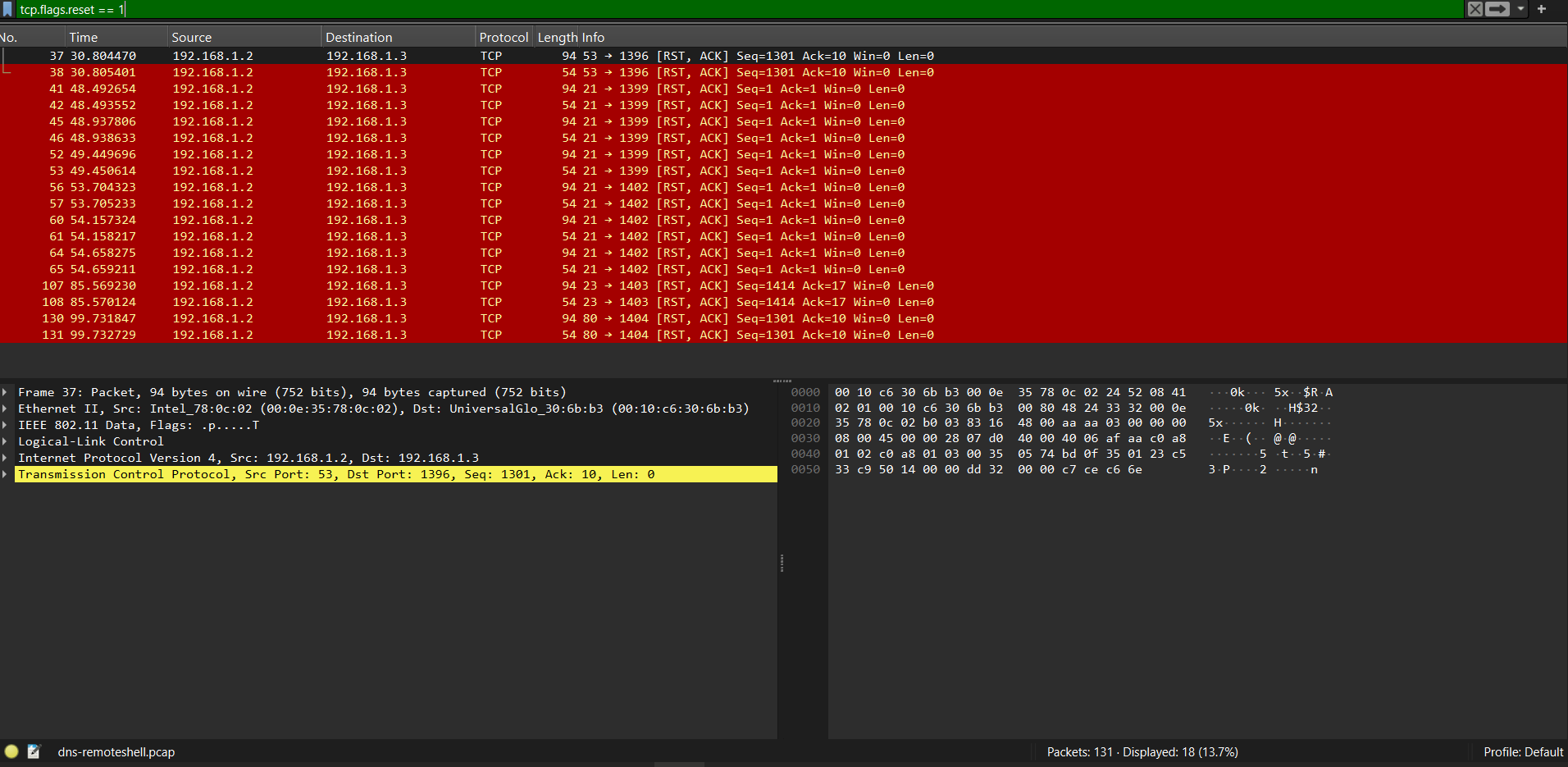
tcp.flags.syn == 1 && tcp.flags.ack == 0To catch RST packets, which usually show that there are refused or dropped connections:
tcp.flags.reset == 1Wireshark also has built-in TCP analysis fields that catch performance issues.
These two are really useful:
tcp.analysis.retransmission
tcp.analysis.out_of_order
If you're diagnosing slow connections or packet loss, then you’ll want to start with the retransmission filter. It'll lead you to the problem fast.
Step 9: Apply Display Filters to Real Traffic Examples
Here's where all of the steps come together, letting you use the commands that you’ve learned about. These are four scenarios you might encounter while troubleshooting or investigating a real network.
Scenario 1: A User Can't Reach a Website
Start with DNS to check that hostname resolution is working:
dnsIf DNS looks fine, check for HTTP error responses:
http.response.code >= 400This should reveal any HTTP errors, like 4xx client errors and 5xx server errors. If you see a lot of 503s, then the issue is starting to point at the server. If you see tons of 404 errors, then you could be dealing with the application or URL, as that is causing the trouble.
Scenario 2: Checking for Unexpected Outbound Connections
Filter for traffic from an internal device that's leaving the local subnet:
ip.src == 192.168.1.50 && !ip.dst == 192.168.1.0/24This shows the connections the device is making outside the local network, which can indicate unexpected external communication on the network.
Scenario 3: Investigating ARP Issues
ARP poisoning and duplicate IP addresses both appear in ARP traffic. You can start with a broad and basic query like:
arpYou’ll be keeping an eye out for multiple ARP replies for the same IP address, each from a different MAC address. If that is the case, then it is a red flag worth digging into.
Scenario 4: Spotting a Port Scan
A port scan sends SYN packets to different ports very quickly and sequentially. You’ll want to filter for SYN packets and look for a single source IP that’s hitting lots of different destination ports:
tcp.flags.syn == 1 && tcp.flags.ack == 0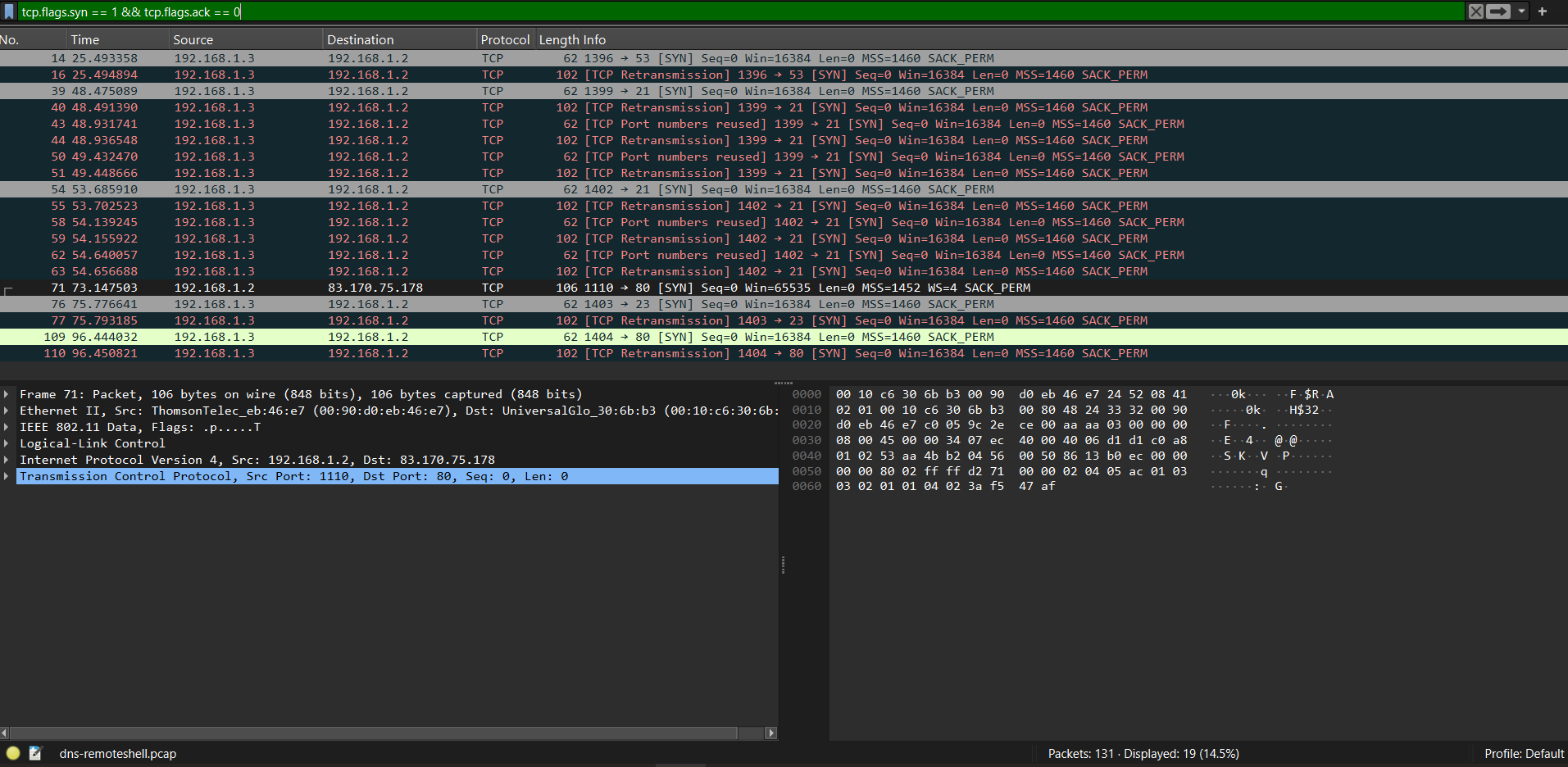
Step 10: Save and Reuse Common Display Filters
Wireshark lets you save display filters so that you don’t have to type them in every time. This is very handy if you’ve built a filter you use more often.
To save a filter:
Type your filter expression into the display filter bar.
Click the bookmark icon on the left side of the bar.
Select "Save this filter" from the dropdown.
Give it a name and click OK.
To access saved filters, click the bookmark icon again, and your saved list appears. Click any of them to apply it instantly.
You can also manage all saved filters through Analyze > Display Filters from the top menu. From there, you can add, edit, or delete any filter in your collection.
Here are a few filters that are worth saving from the start to save you some time:
http.response.code >= 400
tcp.flags.reset == 1
tcp.analysis.retransmission
dns
Over time, you'll build a personal toolkit of filters tuned to the specific network environments you work in. That list could become one of your most useful troubleshooting resources if you do a lot of network diagnosis and investigation work.
Conclusion
Display filters turn Wireshark from an undecipherable wall of packet data into an orderly, useful collection of data points. It has consistent syntax and logic that is easy to understand, making filters a very useful skill to have.
Packet analysis takes time to get good at. You will need to practice with Wireshark to understand which queries yield the best results in specific scenarios. As you use Wireshark more often in real-world environments, you’ll start noticing patterns and repeating behaviors that will help you speed up investigations and troubleshooting.
If you want to go deeper and build your skills with Wireshark beyond display filters, then take a look at the Wireshark Certified Associate (WCA-101) course. It covers packet capture, protocol dissection, display filters, and real-world analysis scenarios.